Slack

The Captivate Hub app lets your agent communicate with users between Slack and any channel, e.g., messenger, whatsapp, twitter.

Please follow all the instruction thoroughly and do not skip any instructions on the Installation part.
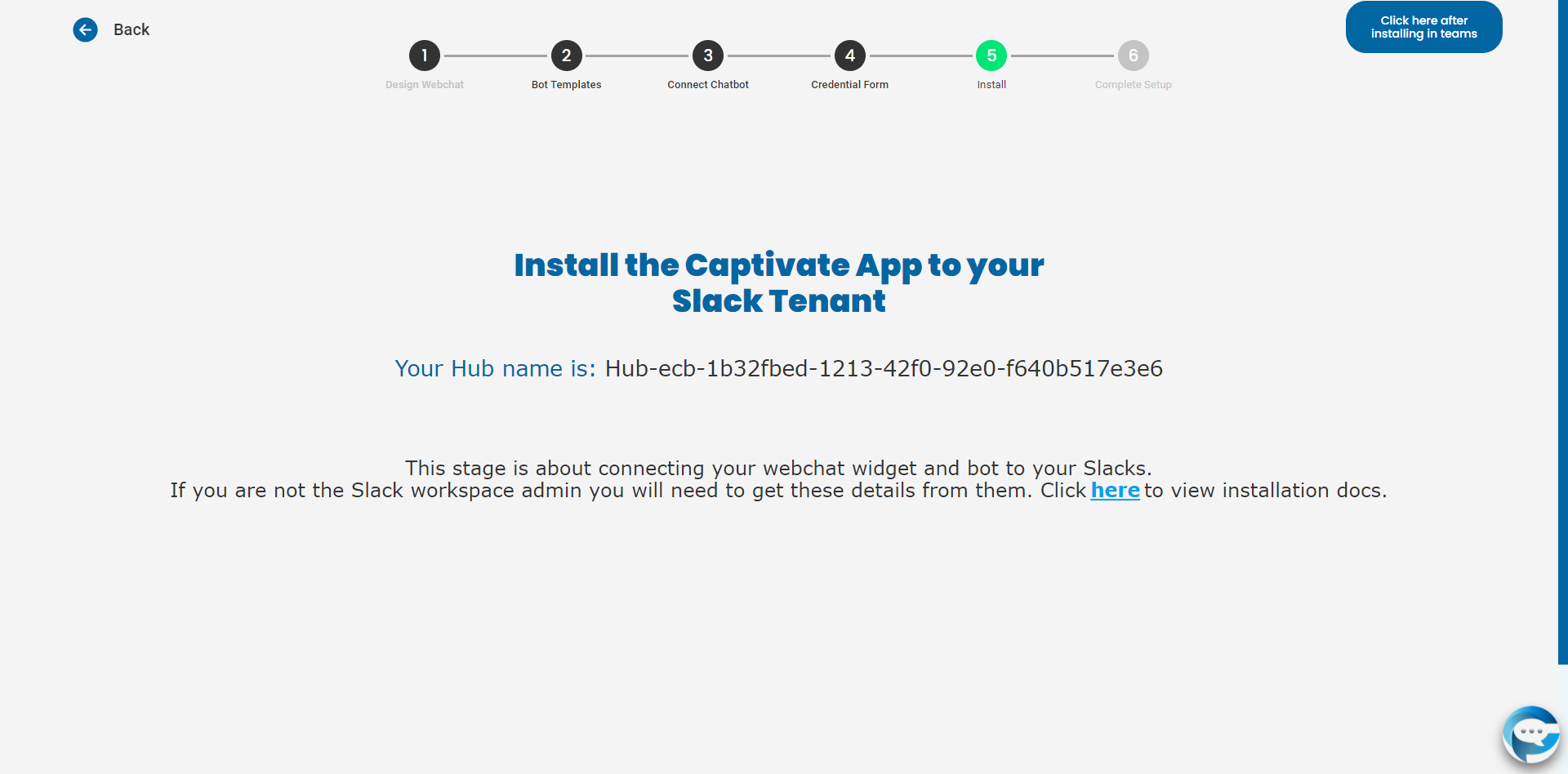
If you have any suggestions on this page please email us at [email protected]

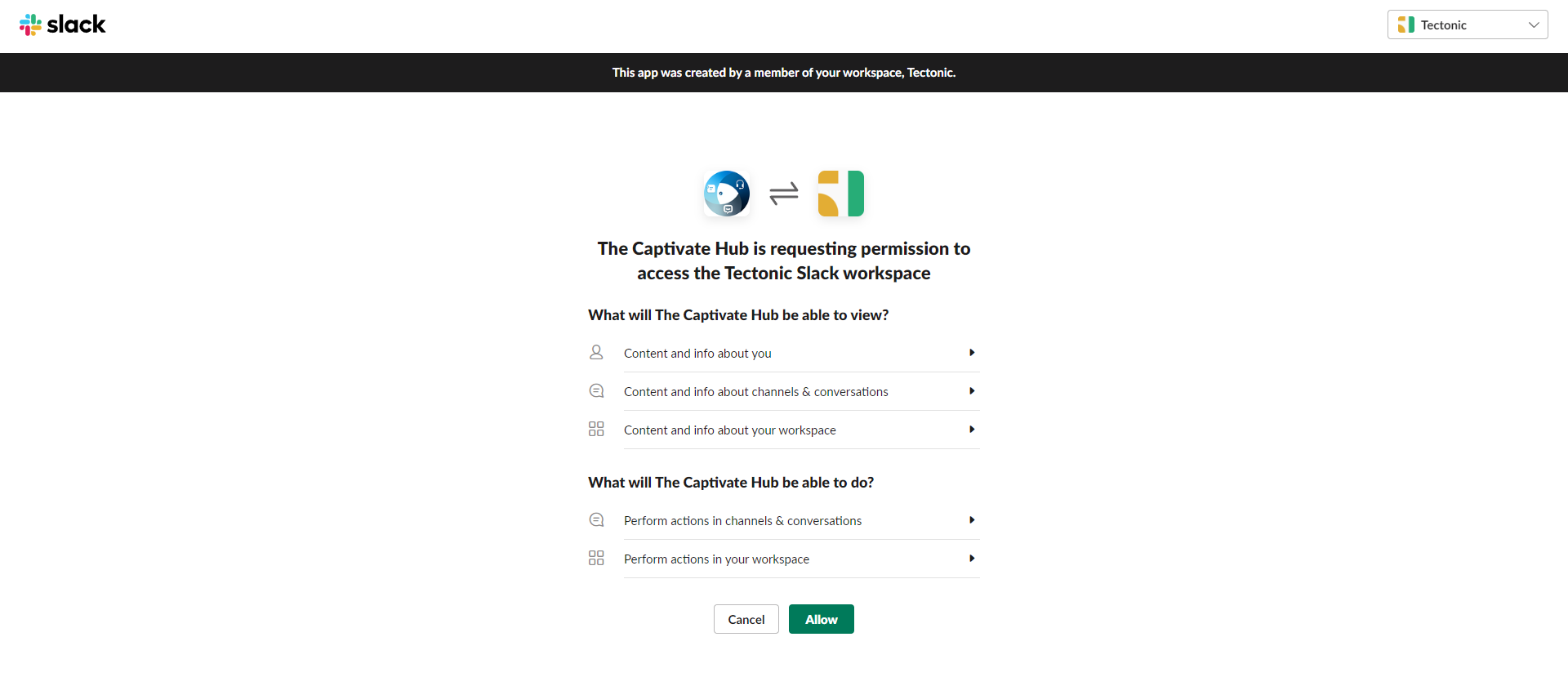
Figure 1: Slack installation window after creating the hub

App Installation.

  • Click this link or click the "Add to Slack button" below and install the Slack app. and press the "Allow" button

add-slack

Authentication

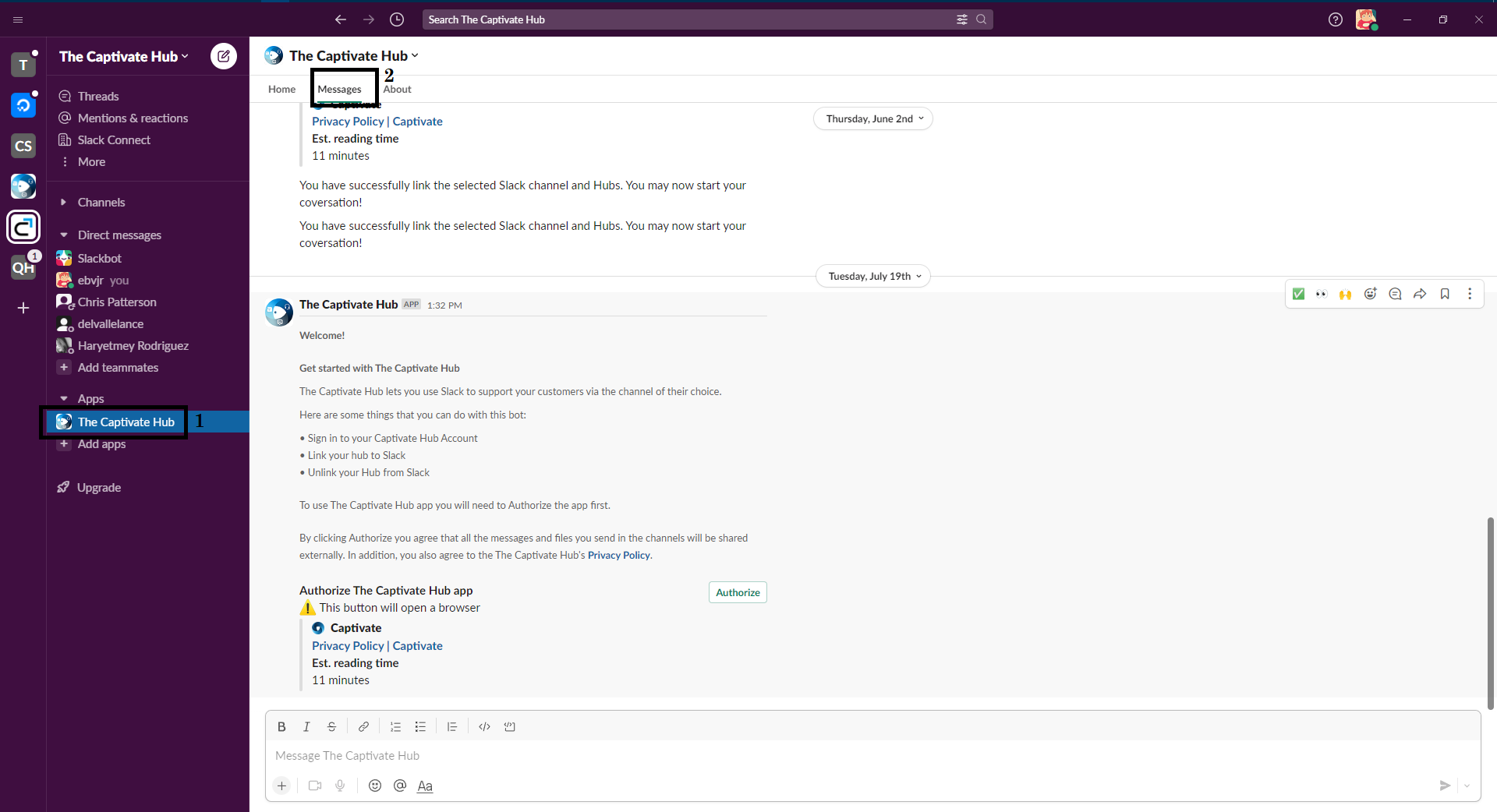
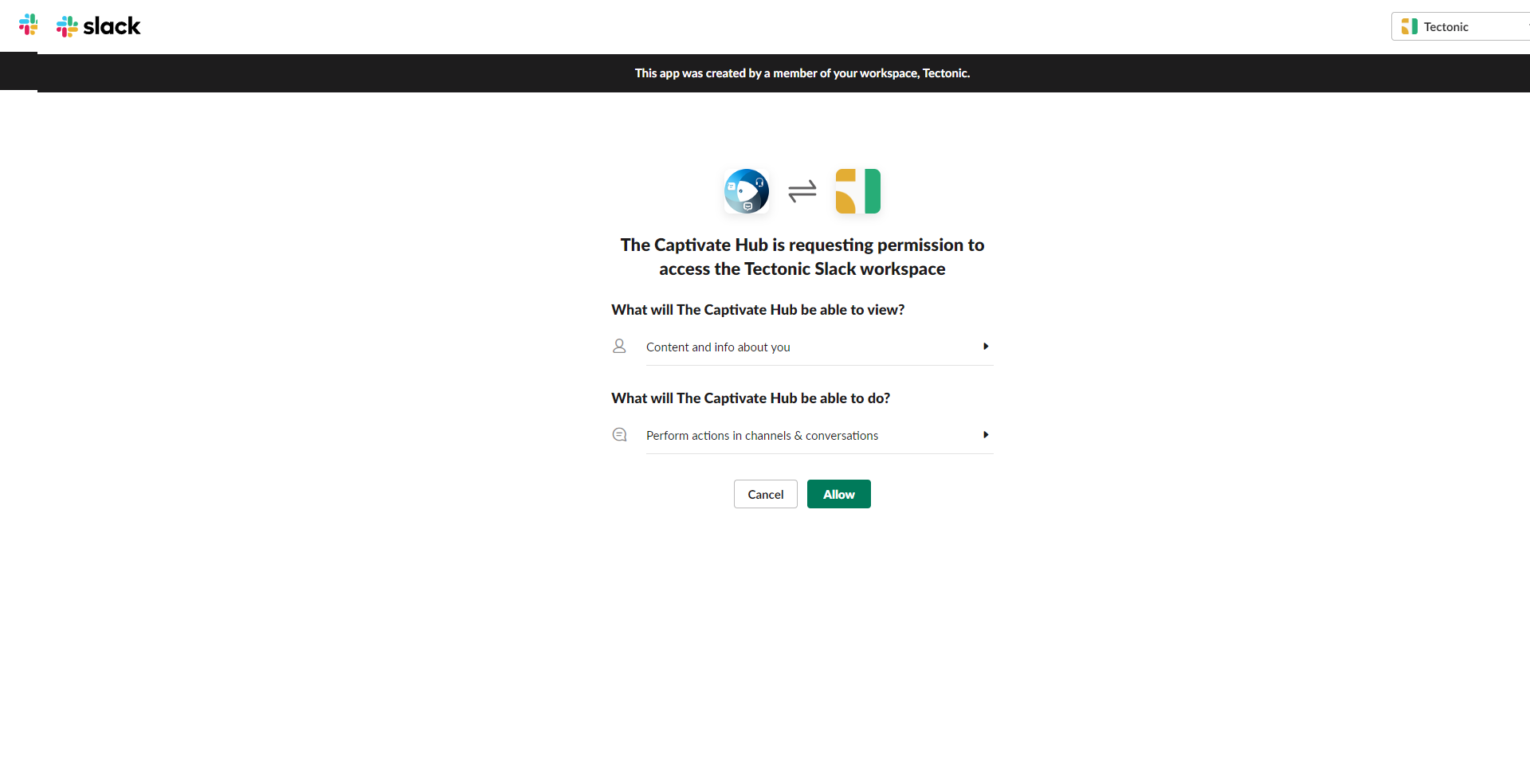
  • You will be see the "The Captivate Hub" on your apps. click the app and on the topside click the "Messages". on the first message of the Slack app. click the "Authorize" button. The application will ask you another permission. please click allow.

Figure 2: Accessing the Captivate Hub for Authentication
Figure 3: Slack app is requesting again new permissions
  • After the authorization of the Slack app. type the command '/signin' to the Message and it will display "Sign-in" button. it will open a browser and login your account credentials on the Hub.

Figure 4: Output of /signin on the Slack app

Hub Installation

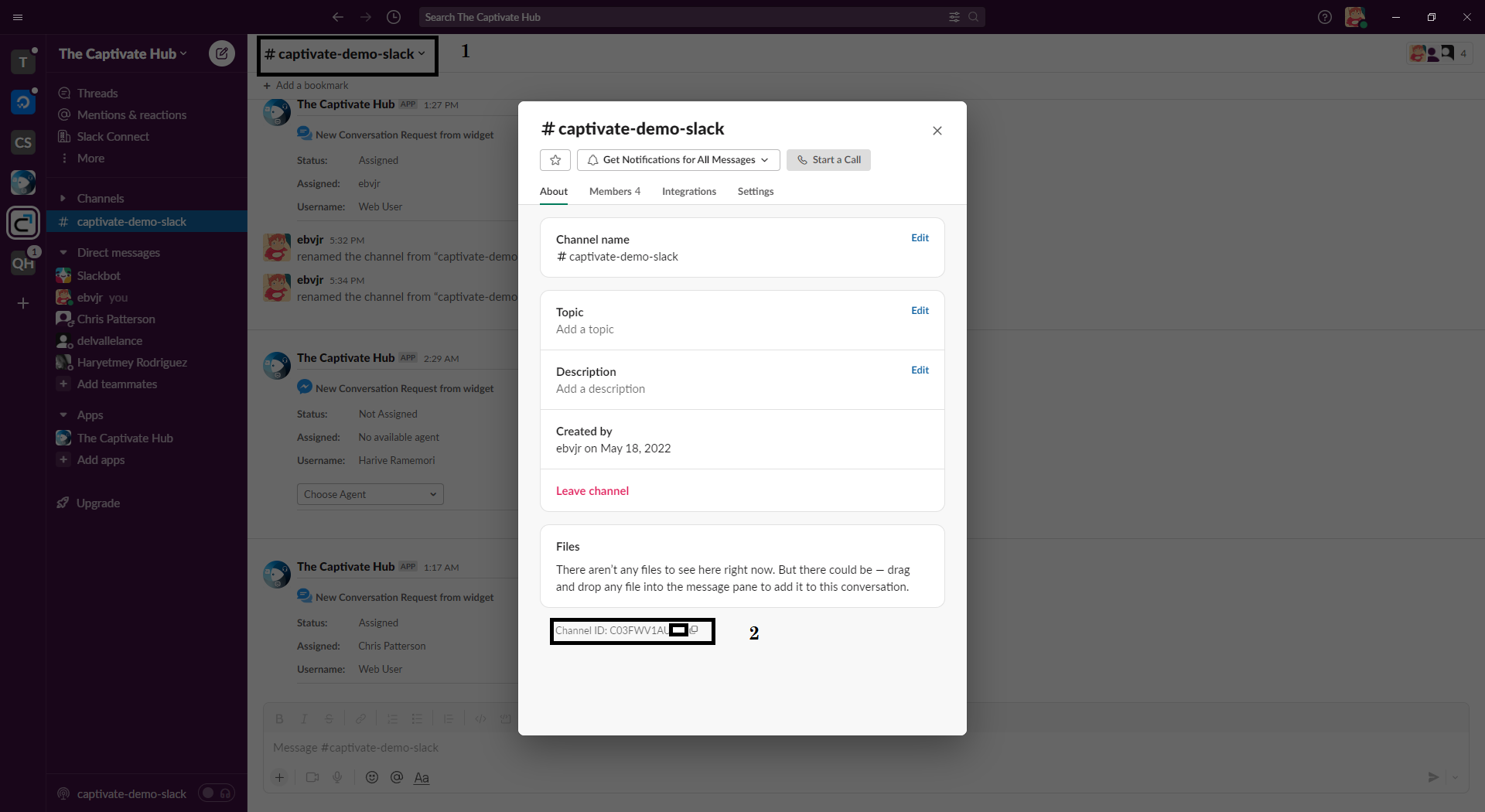
  • Now that you are logged in to The Hub, create a new channel giving it a name you will associate with using The Hub (e.g. The Hub Live Chat). after creating the channel, select the new created channel and get the channel details by clicking its header. copy the "Channel ID"

Figure 5: Channel information on Slack
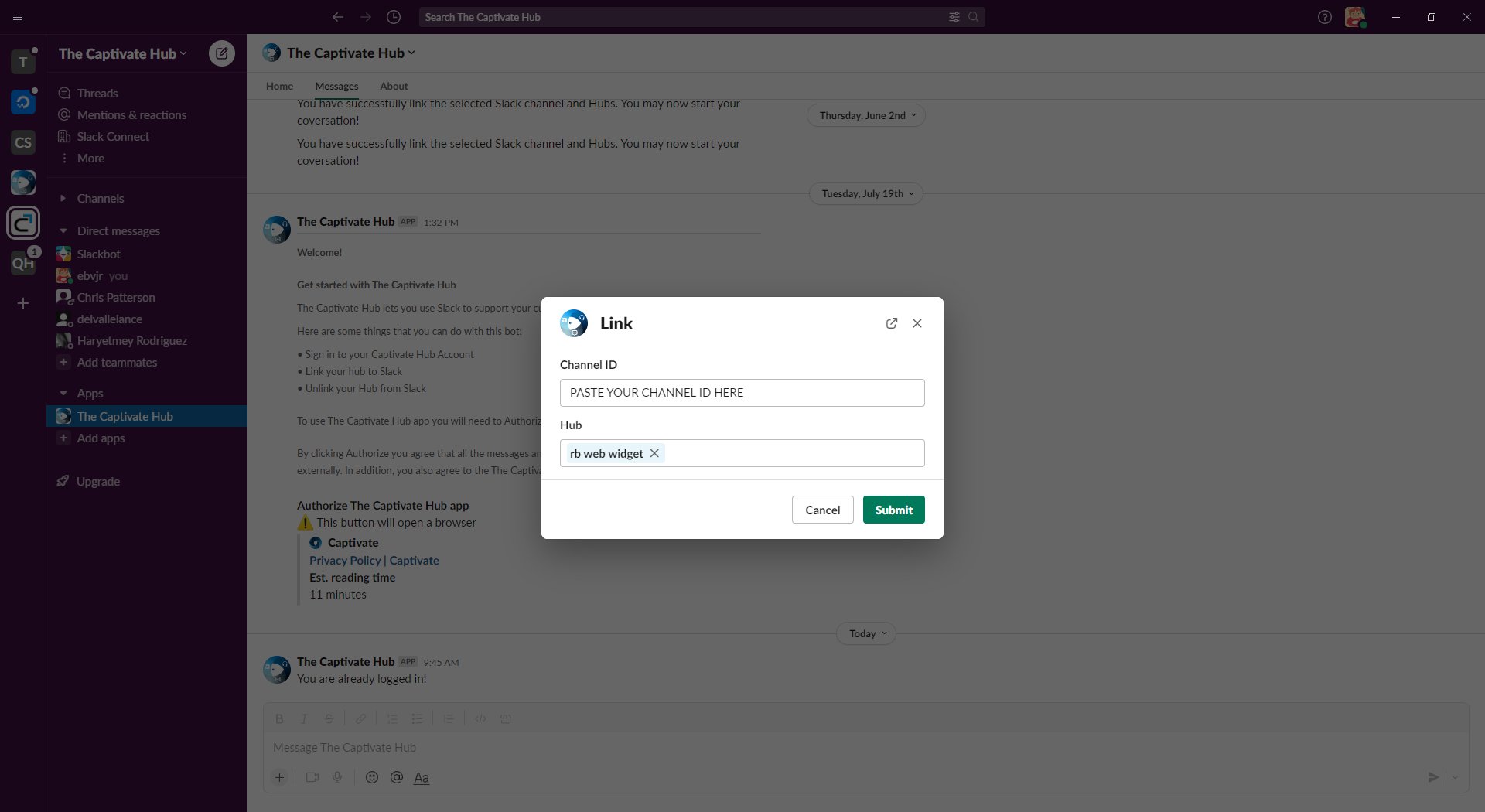
  • Go to the app messages again (Figure 2) and type the command /link. it will display a new window asking for your Channel ID and Hub. paste the Channel ID you copied on Figure 5 and select the Hub will be connected to Slack and press "Submit"

Figure 6: Link window

Congratulations, you have now connected your Hub to Slacks!

Read Privacy Policy